Integrated Jupyter Notebooks for Python Plugin
The Integrated Jupyter Notebooks for Python plugin provides an interface to launch a Jupyter server and open an integrated user interface to use Python.
STK Pro, STK Premium (Air), STK Premium (Space), or STK Enterprise
You can obtain the necessary licenses for this tutorial by contacting AGI Support at support@agi.com or 1-800-924-7244.
You must install Python separately.
Locating the Plugin in STK
To find the plugin in STK, you have two options:
-
Select View > Toolbars > Integrated Jupyter Notebooks for Python to display the toolbar in STK.

-or- -
Select Utilities > Integrated Jupyter Notebooks for Python
 .
.
Launching the Python Interface
-
From the plugin toolbar, select Launch Python Interface (
 ). The Integrated Jupyter Notebooks for Python window displays.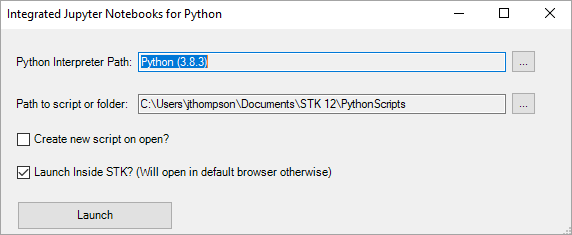
Verify that you have the Python API installed from <yourSTKInstallPath>/bin/AgPythoinAPI/agi.stk12-12.2.0-py3-none.any.whl.
-
Verify your Python version is correct by checking the Python Interpreter Path field. This displays the Python version that you will use. If you prefer to use a different version, click
 to choose the appropriate version of Python.
-
In the Path to script or folder field, click to select a folder that has existing Python scripts, or create a new folder where all new scripts will be saved.
-
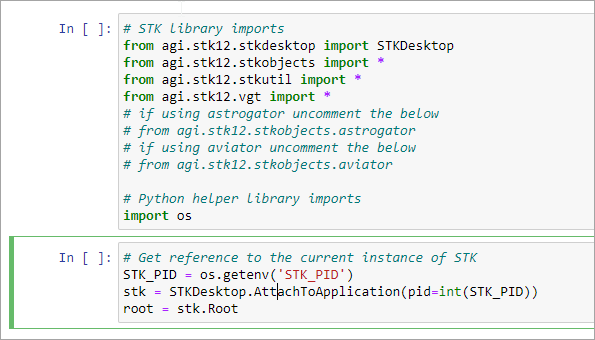
If you want to create a starter script with the baseline code to connect to your STK instance, select the Create new script on open? check box. An example of this script is below:
- If you want to launch the Jupyter Notebooks interface within the integrated web browser in STK, select the Launch Inside STK? check box. Otherwise, the Jupyter Notebooks interface will launch in your default browser outside of STK.
When working in the Jupyter Notebooks interface within the integrated web browser in STK, the Upload folder will not function. Simply place the files in the file directory that you selected on start-up.
Accessing Python Code Samples
To access Python code samples from Github, select Github Code Samples ( ) from the plugin toolbar. This opens the "STKCodeExamples" Github repository, which contains a variety of automation scripts using Python.
Accessing the Python API Help
To access the Python API documentation from within STK, select Python API documentation ( ) from the plugin toolbar. Alternatively, you can click Help > Programming Interface Help to access the same Python API documentation.