STK Data Reader
The STK Data Reader enables you to choose which STK analysis results to make available in TETK. These results include, but are not limited to:
- Aircraft flight profile parameters (fuel usage, airspeed, etc).
- Object properties like vehicle position and orientation or sensor pointing.
- Vectors, angles, and custom scalar calculations.
TETK requests only Epoch Data time. The Flight Date is derived from the Epoch after ownship or target creation. Epoch can be a date or a date and time. If your old data or scenarios use Flight Date, TETK will still use that in place of Epoch.
Using STK Aircraft as Test and Evaluation Tool Kit Objects
- Open the Data Import Tool (
 ).
). - Click the button.
- You have two options:
- Attach to Existing T&E Analysis Object - If you have created an analysis object (by importing data from an external source or with a previous STK Data Reader), you can select that object and add STK analysis data to the available data elements.
- Promote STK Object to T&E Analysis Object - If you want to TETK analysis with an STK object that has not been identified as a T&E Analysis object, you can select that object from the list, promote it to a T&E Analysis object and then add it to the STK analysis data to the available data elements list.
- Select the object from the pull-down menu.
- Enter the Time Step. The default is a reasonable value; too small a value can generate too much data while too large a value will miss important events.
- Click .
After you have selected the object to hold the data, a window appears where you can select which STK data elements to link.
- Use the Choose STK Object drop-down menu to change the STK object or Access definition that is the source of the desired data. Changing the selected STK object clears the list of selected STK Data. Only one STK object can be represented in a data reader.
- Browse the Available STK Data column for the elements of interest.
- Move (
 ) the elements to the Selected STK Data field.
 - If you selected an Access definition, select whether the values from the elements should be a snapshot (Fixed) or should the values be dynamic and update with the scenario (Linked).
- Click to add the data elements of interest to the STK Data Reader.
Selecting an Aviator aircraft object displays a list of Flight Attitude data providers. Selecting any other object displays Heading/Fixed data providers.
This process can be repeated if you'd like to attach data from other objects or if you want to add more data from the same object. There is no limit to the number of STK Data Readers you can create.
AGI recommends that you always import LLA position data for a vehicle. This way you can reference it when using other parts of the tool, like contour lines and event markers.
You can right click an Aircraft, Ground Vehicle, Missile, Satellite, or Ship and promote the object to an Analysis object through the context menu shown below
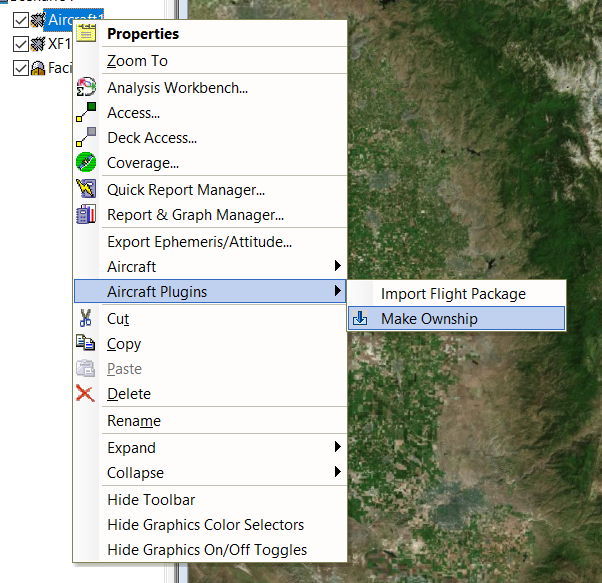
You will then be prompted to set the time step for the object then select data providers to use as data elements.
It’s important to note that this list is generated by object type not the specific object similar to the STK report and graph manager when creating a report. So Aircraft will show Flight Profile by Time data providers even if the aircraft is not an Aviator aircraft. Similarly Satellites will show Astrogator data elements even if the satellite isn’t using the Astrogator propagator.
Using the TETK Custom Data Reader Plugin
TETK supports the ability to use a custom data reader plugin for your own data format. For more information, refer to the instructions located within the STK installation directory, which should be located on your machine at C:\Program Files\AGI\STK _ODTK 13\Help\STK\LinkedDocuments\TETK_DataReader_Plugin.pdf.
Additionally, a plugin example can be found at C:\Program Files\AGI\STK_ODTK 13\Help\STK\TeTraining\Training files\DBPlugin.