Taking Snapshots
Snapshots of the 3D window are taken by using the camera's
Snapshot interface. To save the 3D window to a file, use
SaveToFile as shown below.
| [C#] |
 Copy Code Copy Code
|
scene.Camera.Snapshot.SaveToFile(fileName,
AgEStkGraphicsCameraSnapshotFileFormat.eStkGraphicsCameraSnapshotFileFormatJpeg);
|
|
The resulting image will have the same width and height as the
3D window. Snapshots can also be copied to the clipboard using
SaveToClipboard.
Raster objects can be created from snapshots using
SaveToRaster. Creating a
Raster object allows the snapshot to be processed using STK
Engine's imaging capabilities.
Furthmore, a texture can be created from the image and used as
input to a primitive, screen overlay, or
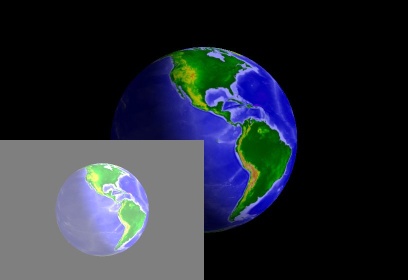
projected raster globe overlay. The following example creates
an image from a snapshot, brightens it, and then creates a texture
screen overlay based on the image.
| [C#] |
Copy Code
|
IAgStkGraphicsScreenOverlayCollectionBase overlayManager =
(IAgStkGraphicsScreenOverlayCollectionBase)manager.ScreenOverlays.Overlays;


IAgStkGraphicsRaster image =
scene.Camera.Snapshot.SaveToRaster();


IAgStkGraphicsBrightnessFilter brightness =
manager.Initializers.BrightnessFilter.Initialize();

brightness.Adjustment = 0.5;

image.ApplyInPlace((IAgStkGraphicsRasterFilter)brightness);


IAgStkGraphicsTextureScreenOverlay overlay =
manager.Initializers.TextureScreenOverlay.InitializeWithXYWidthHeight(0,
0, image.Attributes.Width / 2, image.Attributes.Height / 2);

IAgStkGraphicsRendererTexture2D texture2D =
manager.Textures.FromRaster(image);

overlay.Texture = texture2D;


overlayManager.Add((IAgStkGraphicsScreenOverlay)overlay);
|
|
Taking High Resolution Snapshots
By default, snapshots taken with
SaveToFile,
SaveToClipboard, and
SaveToRaster are at the same resolution as the 3D window.
Sometimes, a higher resolution snapshot is desired, maybe for
printing. Use
SaveToFileWithWidthAndDPI to take a high resolution snapshot.
The parameters are in terms that printers typically use: width in
inches and dots per inch. Multiplying the two together is the
actual width of the snapshot. The height of the snapshot is based
on that width and the aspect ratio of the 3d window's width and
height.
The following example saves a high resolution snapshot to a
file.
| [C#] |
Copy Code
|
scene.Camera.Snapshot.SaveToFileWithWidthAndDPI(fileName,
AgEStkGraphicsCameraSnapshotFileFormat.eStkGraphicsCameraSnapshotFileFormatJpeg,
6, 360);
|
|