Part 13.2:
STK Pro, STK Premium (Air), STK Premium (Space), or STK Enterprise
You can obtain the necessary licenses for this tutorial by contacting AGI Support at support@agi.com or 1-800-924-7244.
Capabilities covered
This lesson covers the following capabilities of the Ansys Systems Tool Kit® (STK®) digital mission engineering software:
- STK Pro
- STK Integration
Problem statement
You will be analyzing the behavior of a satellite when it has contact with a ground site. The task will be repetitive and you consider methods of automating the process and extracting the data. Knowing that you can integrate the STK software with other tools, you decide to explore the integration process.
Solution
Analysis in the STK application can be integrated and automated with code. You decide to run the process with Python. Using the resources on the STK Help and Github, you will explore how to model a mission with a script.
Upon completion of this tutorial, you will be able to:
- Connect the STK application to a programming interface
- Build a mission through a script
- Extract data from the STK software
A PowerPoint Presentation and a zipped Python notebook file accompany this lesson. It is recommended that you follow the presentation while performing the tasks. If you don't want to use the shared files, you can enter the commands right in the Python Command Window; you can download a zipped Python script file here.
Using the STK Programming Help
Before attempting to code anything, take a moment to familiarize yourself with the STK Programming Interface Help system.
Historically, integrating STK Desktop application and STK Engine was achieved with either win32com or through the comtypes Python module. In STK 12.1, AGI developed an STK Python API to provide the following:
- Cross-platform support: For both Windows and Linux, you can employ code written using the Python API interacting with STK Engine without modifications, assuming that you follow the usual cross-platform Python guidelines.
- Usability improvements:
- The API provides definitions for all enumerations. With win32com, enumerations had to be defined manually based on the corresponding numerical value.
- You get better IDE support through type hints, based on the typing module.
For versions 12.2 of the STK software and newer, you can use Jupyter Notebooks directly inside STK with an integrated user interface. This enables you to use Python scripting language to:
- Automate the STK software from Windows or Linux platforms
- Streamline your workflow
- Provide a more interactive development experience
The Python API has also been expanded to support STK events and to expose the globe and map controls, enabling you to develop custom applications in Python.
Resources for integrating with the STK software are available both online and locally, if installed with the STK software installation. You can access these in several different ways:
- Go directly to the online STK Programming Help page: help.agi.com/stkdevkit/index.htm.
- Launch the STK Programming Help from within the STK application. Select Help on the menu bar and select Programing Interface Help.
- Launch the STK Help via the Windows Start Menu: Select Start > STK 12 > STK 12 - Programming Interface Help.
You will find a wealth of information within the STK Programing Interface Help system, including integration tutorials, code snippets, decision trees, and library references.
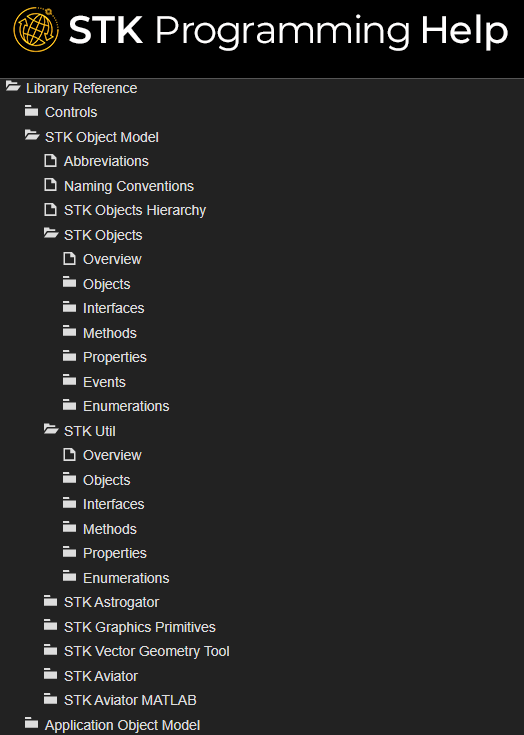
The help system tree looks like this:
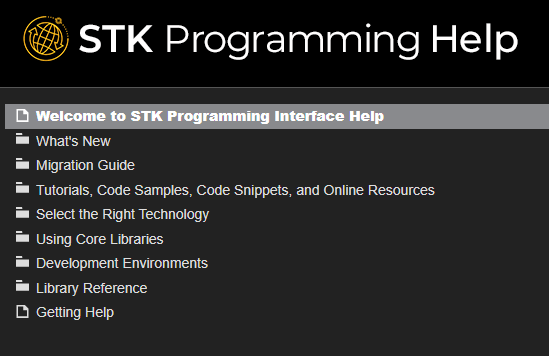
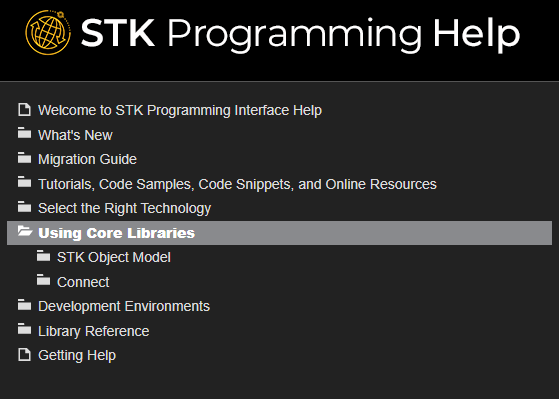
Within the Using Core Libraries directory, you will find additional information on using the STK Object Model and Connect.
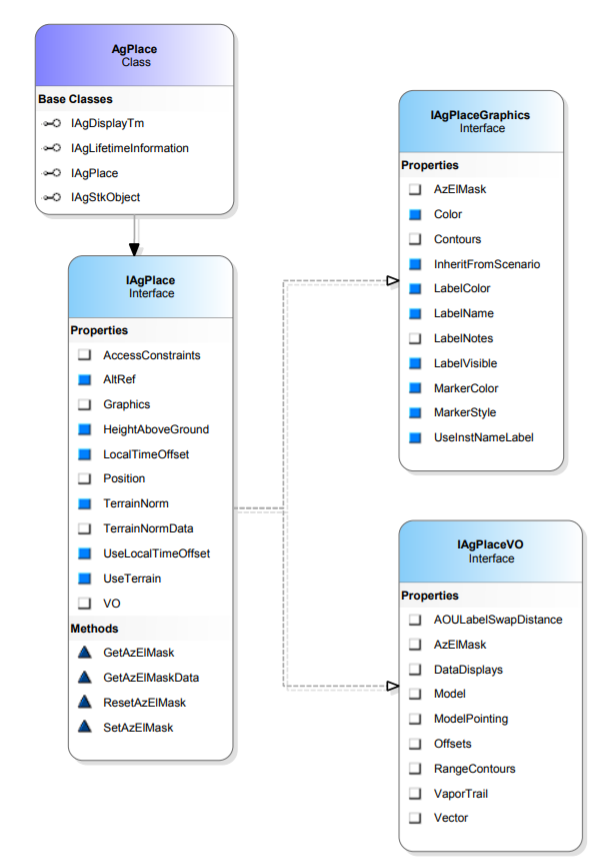
The STK Object Model section listed under Using Core Libraries contains useful code snippets in various programming languages. It also contains information on the various COM libraries that make up the STK Object Model. This information includes useful diagrams that help visualize how the STK Object Model is structured.
In the Connect section of Using Core Libraries, you will find useful Getting Started information outlining the basics of Connect command and response formats. The section also contains useful code snippets that demonstrate the syntax for various Connect commands.
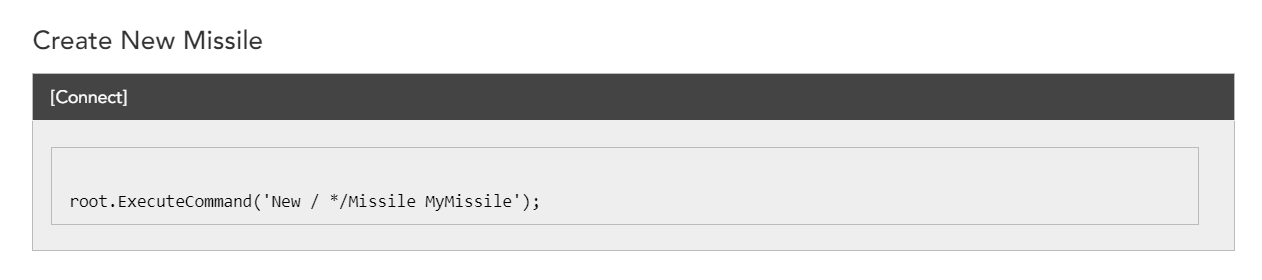
This snippet utilizes the STK Object Model to send the Connect command. The raw Connect command is the string being passed to root.ExecuteCommand().
You should explore more of the help sections, but one last important section to point out is the Library Reference section.
Under Library Reference, you will find documentation on the STK Object Model, Connect Command Library, Data Providers, and more. The STK Object Model documentation is organized by the individual libraries, so there is a section for STK Objects, a section for STK Util, and so on, with each section encapsulating certain aspects of functionality. Within each section items are broken down further by their type. When needed, this can make it quicker to find the exact item you are looking for.
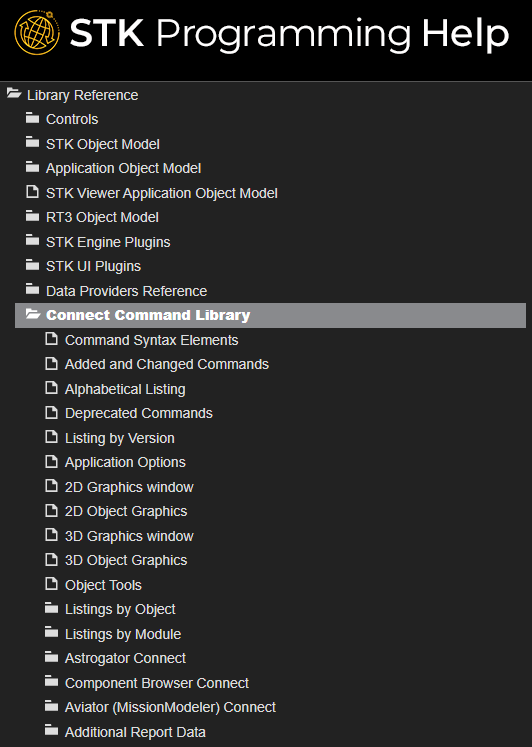
The Connect Command Library, listed under Library Reference, houses the documentation for all of the Connect commands. In this case commands are listed in several different formats, including alphabetically, by object, and by capability, to assist in locating the exact reference needed.
Trying it out
To find help for the AgStkObjectRoot class:
- Click Library Reference > STK Object Model > STK Objects.
- Scroll down the alphabetical list until you find the entry entitled "AgStkObjectRoot".
- Click AgStkObjectRoot to reveal detailed information and important links, including a link to the IAgStkObjectRoot interface.
- From there, you can access a listing of all the members (methods and properties) of the interface associated with the AgStkObjectRoot object. Similarly, you can find help for any other object or interface, as well as any method, property, or enumeration.
A quick way to find help on a given type is to use the Search tab of the Help system. For example, suppose you are interested in the AgECoordinateSystem enumeration. If you enter "AgECoordinateSystem" in the search field and click List Topics, a list of pages containing that term appears. The entry for the AgECoordinateSystem reference page will appear at the top. Select that entry to display a page defining the enumeration and listing its members.
A final note on the STK Programming Help system
In addition to help on programming issues, the help provides information about the real-world context in which the application is to be used. For example, the STK Object Model help page for the SpinAxisConeAngle property tells you that it is writable, is of the Variant data type, and belongs to the IAgSnPtSpinning interface. In addition, it tells you that the property represents "the cone angle used in defining the spin axis; i.e., the angle between the spin axis and the sensor boresight." This latter information is useful in deciding whether or not and how to use the property in your application, but since the help is mainly intended to provide guidance on programming issues it is best to also reference the STK Help System, where there is generally more information. For example, the help page for "Spinning Sensor Pointing" not only gives more detailed context information but also includes a drawing of spin axis geometry that illustrates the spin axis cone angle quite clearly.
The STK Programming help has many object-specific Python code snippets to assist you. Additional Python Resources are available on Github.
Before you start: Integrating STK with Python
Watch the following video. Then follow the steps below, which incorporate the systems and missions you work on (sample inputs provided).
This lesson was written with Python 3.7.7, but you can use other versions of Python. See
Creating an STK scenario
First, create a new scenario.
- Launch the STK application (
 ).
). - Click
 Create a Scenario in the Welcome to STK dialog box.
 - Enter the following in the New Scenario Wizard:
- Click .
- Click Save (
 ) when the scenario loads. The STK application creates a folder with the same name as your scenario for you.
 - Verify the scenario name and location in the Save As dialog box.
- Click .
| Option | Value |
|---|---|
| Name | STK_Python_Training |
| Start Time | Default |
| Stop Time | Default |
Integrating STK and Python
The
pip install "C:\Program Files\AGI\STK 12\bin\AgPythonAPI\agi.stk<..ver..>-py3-none-any.whl"
Launching the Python Scripting Interface
There are several ways to open a Python notebook. You will try opening it within the integrated web browser in the STK application. To do so, you need to launch the Python Scripting Interface.
If you don't want to use a Python notebook file, you can enter the commands right in the Python command window; you can download a zipped Python script file here.
If you are not already logged in, you will be prompted to log in to agi.com to download the file. If you do not have an agi.com account, you will need to create one. The user approval process can take up to three (3) business days. Please contact support@agi.com if you need access sooner.
- Select View on the STK menu bar.
- Select Toolbars.
- Select Integrated Jupyter Notebooks for Python.
- Examine the three buttons. The first button from the left opens the interface, the second opens the Github, and the final one opens the Programming Help.
- Click Launch Python Scripting Interface (
 ) to open the Integrated Jupyter Notebooks for Python window.
 - If not already specified, click the ellipsis button (
 ) in the Python Interpreter Path field to set the Python install path.
 - If not already specified, click the ellipsis button () in the Path to script or folder field to set the folder location where you would like to save your script. By default, it will point to your STK User folder at C:\Users\username\Documents\STK 12\PythonScripts.
- Clear the Create new script on open? check box.
If you want to create a starter script with the baseline code to connect to your STK instance, select the Create new script on open? check box.
Copying the Python notebook file
To open a Python notebook in the Python Scripting Interface, you must place the Python notebook file in the directory you selected on start-up.
-
- Right-click on the downloaded zipped folder.
- Select Extract All... in the shortcut menu.
- Set the Files will be extracted to this folder: path to a directory of your choice.
- Click .
- Navigate to the directory you specified.
- The Python_Jupyter_STK_Training.ipynb notebook file will be in the Python_Jupyter_STK_Training folder.
- Copy the Python notebook file to the Path to script or folder you specified in the Integrated Jupyter Notebooks for Python window.
Launching the Jupyter Notebooks interface
Launch the Jupyter Notebooks interface in the STK application's integrated web browser.
- Ensure the Launch Inside STK? check box is selected.
- Click to close the Integrated Jupyter Notebooks for Python window and to launch the Jupyter Notebooks interface.
- Select the check box next to the Python_Jupyter_STK_Training.ipynb in the file list.
- Click to open the Python_Jupyter_STK_Training notebook in a new Web Browser window.
Using the integrated Jupyter notebook
The Python_Jupyter_STK_Training notebook contains the completed script needed for this tutorial. You can run the script directly from the notebook.
- Click into the individual cell of code as indicated in the notebook.
- Click as specified.
- Repeat for each cell of code in the notebook.
Building your own notebook
If you want to build your script from scratch, you can do so in a new Python notebook.
Creating a new Jupyter notebook
Start by creating a new notebook file.
- Select New in the File menu of the Jupyter notebook Web Browser window.
- Select Notebook in the New submenu.
- Use the default kernel (for example, Python 3 (ipykernel)) when the Select Kernel dialog box opens.
- Click to confirm your selection and to open a new notebook.
Setting up your workspace
With you new notebook file created, you can start writing your script. You will add cells and enter your script in section and run them. You may also use the completed script by adding or writing in any missing lines of code.
- Set up your workspace by copying the starter code below and pasting it into the first cell of your new notebook:
- Connect to the STK application instance. Use the appropriate script below depending on how you connect to the STK application.
- Grab a handle on the STK application root:
- Check that the root object has been built correctly and check the type:
- Once the above lines are entered into the cell, click . This will create a new STK window.
# STK library imports
from agi.stk12.stkdesktop import STKDesktop
from agi.stk12.stkobjects import *
from agi.stk12.stkutil import *
from agi.stk12.vgt import *
# if using astrogator uncomment the below
# from agi.stk12.stkobjects.astrogator
# if using aviator uncomment the below
# from agi.stk12.stkobjects.aviator
# Python helper library imports
import os
Use the STK_PID environment variable when using the Integrated Jupyter Notebooks for Python Plugin and have multiple instances of the STK application running:
STK_PID = os.getenv('STK_PID')
stk = STKDesktop.AttachToApplication(pid=int(STK_PID))
Use the STKDesktop.AttachToApplication method without reference to STK_PID when running a single instance of the STK application. It does not matter if you are in a notebook or not.
stk = STKDesktop.AttachToApplication()
root = stk.Root
Recall that the AgStkObjectRoot object is at the apex of the STK Object Model. The associated IAgStkObjectRoot interface will provide the methods and properties to load or create new scenarios and access the Object Model Unit preferences. Through the Connect command you have a pointer to the IAgUiApplication interface; however, the STK Python API provides a direct handle to the IAgStkObjectRoot via the Root property in STKDesktop or the NewObjectRoot method in STKEngine.
type(root)
The output should be agi.stk12.stkobjects.AgStkObjectRoot.
Connecting and designing a new scenario
Now that you have launched the STK application via the Python interface, see if you can create a new scenario and set the time period via Python. Create a new scenario and analysis period and reset the animation time.
- Click to add a new cell.
- Copy the following code to create a new scenario:
- Copy the following code to set the analysis period:
- Copy the following code to reset the animation time:
- Click .
# 1. Define a Scenario object.
scenario = root.CurrentScenario
# 2. Set the analytical time period.
scenario.SetTimePeriod('Today','+24hr')
# 3. Reset the animation time to the newly established start time.
root.Rewind();
Inserting and Configuring objects
With a new scenario created, it's time to populate the scenario with objects. Use the STK Python API and the STK Connect commands, via the ExecuteCommand method, to create a facility and a LEO satellite.
- Click to add a new cell.
- Copy the following code to add a target object to the scenario:
- Copy the following code to move the target object to the desired location:
- Copy the following code to add a satellite object to the scenario:
- Copy the code snippets below. Examine the Connect command before running it. You will use the SetState Classical command to propagate the Satellite object for the length of the scenario. Rather than manually setting the times, you will use the defined scenario Start and Stop times. You will print them first to confirm:
- Click .
# 1. Add a Target object to the scenario.
target  = AgTarget(scenario.Children.New(AgESTKObjectType.eTarget,"GroundTarget"))
Casting the object returned from the New method allows for better intellisense in your IDE but is optional; the object returned will be AgTarget at runtime even without the case.
# 2. Move the Target object to a desired location.
target.Position.AssignGeodetic(50,-100,0)
# 3. Add a Satellite object to the scenario.
satellite  = AgSatellite(root.CurrentScenario.Children.New(AgESTKObjectType.eSatellite,"LeoSat"))
print(scenario.StartTime)
print(scenario.StopTime)
# 4. Propagate the Satellite object's orbit.
root.ExecuteCommand('SetState */Satellite/LeoSat Classical TwoBody "' + str(scenario.StartTime) + '" "' + str(scenario.StopTime) + '" 60 ICRF  "' + str(scenario.StartTime) + '" 7200000.0 0.0 90 0.0 0.0 0.0');
Computing access between objects
You now have a scenario with a Target object and a Satellite object. Determine when the Satellite object can access the Target object.
- Go to the STK Programming Interface Help files.
- Locate the code needed to compute an access between two STK objects using the IAgStkObject interface. The access is between the Satellite object and the Target object.
- If you cannot locate the code, expand the following:

- In the Jupyter notebook, click to add a new cell.
- Enter the above text to the new cell and click .
Retrieving access data from STK
Now that the scenario is fully built, the final task is to extract data and perform a basic analysis. You have just computed access between the two objects, so you can use the STK data providers to pull data out of the scenario.
- Click to add a new cell.
- Copy the following code to add calls to the access data provider:
- Click .
accessDP         = access.DataProviders.Item('Access Data')

results          = accessDP.Exec(scenario.StartTime, scenario.StopTime)

accessStartTimes = results.DataSets.GetDataSetByName('Start Time').GetValues()

accessStopTimes  = results.DataSets.GetDataSetByName('Stop Time').GetValues()

print(accessStartTimes,accessStopTimes)
This will retrieve and view the access data in Python.
You can also pull the Start and Stop times in Python using the following lines of code:
accessIntervals = access.ComputedAccessIntervalTimes

dataProviderElements = ['Start Time', 'Stop Time']

for i in range(0,accessIntervals.Count):
     times = accessIntervals.GetInterval(i)
     print(times)
More information is available in the STK Object Model Tutorial.
Retrieving satellite altitude data from STK
Retrieve and view the altitude of the satellite during an access interval.
- Click to add a new cell.
- Copy the following code to add a call to the satellite's LLA State data provider:
- Click .
satelliteDP        = satellite.DataProviders.Item('LLA State')

satelliteDP2       = satelliteDP.Group.Item('Fixed')

rptElements        = ['Time', 'Lat', 'Lon', 'Alt']

satelliteDPTimeVar = satelliteDP2.ExecElements(accessStartTimes,accessStopTimes, 60, rptElements)

satelliteAltitude  = satelliteDPTimeVar.DataSets.GetDataSetByName('Alt').GetValues()

print(satelliteAltitude)
In the above lines, note how the data providers must follow the data provider folder, subfolder, and selection.
Saving your scenario
You have just completed the Integrating STK with Python tutorial using Jupyter notebooks. Don't forget to save your work.
- When finished, close all Web Browser windows you still have open.
- Save () your work.
With your scenario safely saved, you can close out of the STK application. You can expand and automate workflows like these for quickly building and analyzing missions.