STK Premium (Air), STK Premium (Space), or STK Enterprise
You can obtain the necessary licenses for this tutorial by contacting AGI Support at support@agi.com or 1-800-924-7244.
Required product install: The Ansys ModelCenter® model-based systems engineering software and the STK Plugin for ModelCenter are required to complete this tutorial. The ModelCenter software is available through the Ansys Universal Installer and the STK Plugin for ModelCenter is included with the STK Premium installation. Contact AGI support for installation help.
ModelCenter installation prerequisites: The ModelCenter software installs the current version of Java and Python supported by Ansys, but you can also use your own versions. See the Installation instructions in the ModelCenter Installation Guide and Supported Versions documentation for more information. Contact AGI support for help with installation.
This tutorial was written using version 2026 R1 of the Ansys ModelCenter® model-based systems engineering software. Refer to the ModelCenter Supported Versions page in the ModelCenter Installation Guide and Supported Versions documentation for compatibility information.
The results of the tutorial may vary depending on the user settings and data enabled (online operations, terrain server, dynamic Earth data, etc.). It is acceptable to have different results.
Capabilities covered
This lesson covers the following capabilities of the Ansys Systems Tool Kit® (STK®) digital mission engineering software:
- STK Pro
- Radar
- STK Analyzer
- STK Analyzer Optimization
Problem statement
Engineers and operators want to analyze the performance of a mobile phased-array radar system, which will be used to track a heavy-lift launch vehicle from a site near the launch pad. You want to study the effects the input parameters of the radar have on its ability to track the launch vehicle during its ascent. In this case, the radar's performance is measured by search/track integrated probability of detection (S/T Integrated PDet). You want to maintain the highest average S/T Integrated PDet while using the least amount of power to ensure that the radar can track the launch vehicle for the greatest possible extent of its ephemeris.
Solution
Use the STK software's Radar capability and the Analyzer capability, which is part of the Ansys ModelCenter® model-based systems engineering software, to perform a parametric study to gain a better understanding of how the radar's wavelength affects its performance. Then, use the STK Analyzer Optimization capability by means of the ModelCenter application's Optimization tool to determine the best combination of parameters that will provide the highest probability of tracking the launch vehicle while using less power.
What you will learn
Upon completion of this tutorial, you will be able to:
- Analyze a radar system for trends
- Perform Parametric and Optimization studies that vary input variables through a range of values
- Optimize radar parameters to meet mission objectives
Creating a new scenario
First, you must create a new scenario, then build from there.
- Launch the STK application (
 ).
). - Click
 Create a Scenario in the Welcome to STK dialog box.
 - Enter the following in the New Scenario Wizard:
- Click when you finish.
- Click Save (
 ) when the scenario loads.
 - Verify the scenario name and location in the Save As dialog box.
- Click .
| Option | Value |
|---|---|
| Name | ModelCenter_RadarAnalysis |
| Location | Default |
| Start | Default |
| Stop | + 10 min |
The STK software creates a folder with the same name as your scenario for you.
Save () often during this tutorial!
Disabling streaming terrain
By default, the STK application connects to the Ansys Geospatial Data Cloud to distribute Earth terrain data for analysis and visualization. Turn off
- Right-click on ModelCenter_RadarAnalysis () in the Object Browser.
- Select Properties (
 ) in the shortcut menu.
 - Select the Basic - Terrain page when the Properties Browser opens.
- Clear the Use terrain server for analysis check box in the Terrain Server panel.
- Click to confirm your change and to close the Properties Browser.
Modeling the launch vehicle
Insert a
Adding a Launch Vehicle object to the Insert STK Objects tool
You can customize the Insert STK Objects tool to display a Launch Vehicle object if you haven't already done so.
- Bring the Insert STK Objects tool (
 ) to the front.
 - Click .
- Select the Launch Vehicle check box in the Object list when the Preferences dialog box opens.
- Click to confirm your selection and to close the Preferences dialog box.
Inserting a Launch Vehicle object
Insert a new Launch Vehicle object into your scenario.
- Bring the Insert STK Objects tool () to the front.
- Select Launch Vehicle (
 ) in the Select An Object To Be Inserted list.
 - Select Insert Default () in the Select A Method list.
- Click .
- Right-click on LaunchVehicle1 () in the Object Browser.
- Select Rename in the shortcut menu.
- Rename LaunchVehicle1 () HeavyLiftVehicle.
Propagating the Launch Vehicle object
The Launch Vehicle object isn't propagated by simply adding it to the scenario; you first have to open its properties and define its propagator.
- Open HeavyLiftVehicle's () Properties ().
- Select the Basic - Trajectory page when the Properties Browser opens.
- Note that SimpleAscent is selected for the Propagator by default.
- Click to propagate HeavyLiftVehicle () using the default parameters and to keep the Properties Browser open.
With a
Defining the Launch Vehicle object's radar cross section
You want to track HeavyLiftVehicle, which is launching from Launch Complex 39A at NASA's Kennedy Space Center, from a nearby mobile radar site located in Cape Canaveral Space Force Station. When setting up and constraining a radar system, the STK software's
- Select the RF - Radar Cross Section page.
- Clear the Inherit check box at the top of the page.
- Enter 1300 sqm in the Constant RCS Value field in the Band Properties panel.
- Click to confirm your changes and to close the Properties Browser.
This will allow you to set the RCS for the launch vehicle instead of it inheriting settings from the scenario level.
Modeling the mobile radar site
To keep things simple, you can use a Place object to define the location of the mobile radar site. Place objects model points of interest on the surface of the central body.
Inserting a Place object
The mobile radar site is located south of the launch pad near the beach.
- Bring the Insert STK Objects tool () to the front.
- Insert a Place (
 ) object using the Define Properties () method.
 - Select the Basic - Position page when the Properties Browser opens.
- Enter the following parameters in the Position panel:
- Click to confirm your changes and to close the Properties Browser.
- Rename Place1 () Radar_Site.
| Option | Value |
|---|---|
| Latitude | 28.5979 deg |
| Longitude | -80.5854 deg |
| Height Above Ground | 10 ft |
Modeling the rocket tracking radar
A Radar object models the characteristics of a radar system and its environment.
Attaching a radar object
Insert a Radar object and attach it to Radar_Site.
- Bring the Insert STK Objects tool () to the front.
- Insert a Radar (
 ) object using the Insert Default () method.
 - Select Radar_Site () when the Select Object dialog box opens.
- Click to confirm your selection and to close the Select Object dialog box.
- Rename Radar1 () PhasedArrayRadar.
Modeling the radar system
The mobile radar site is equipped with a
- Open PhasedArrayRadar's () Properties ().
- Select the Basic - Definition page when the Properties Browser opens.
- Select the Mode tab.
- Use all the default Radar Monostatic Mode settings.
Selecting the phased array antenna model
Using a phased array antenna, the mobile radar can track multiple targets at the same time and contains thousands of elements that transmit and receive in the X-band frequency range of 8 to 12 gigahertz (GHz).
- Select the Antenna tab.
- Select the Model Specs sub-tab.
- Click the Antenna Model Component Selector (
 ).
). - Select Phased Array (
 ) when the Select Component dialog box opens.
 - Click to confirm your selection and to close the Select Component dialog box.
- Enter 10 GHz in the Design Frequency field.
Turning off the Element Factor
Turning off the Element Factor can be helpful when comparing with other tools that only consider the array factor. When cleared, be aware that the maximum gain will not vary with the steering angle.
- Clear the Include Element Factor check box in the Element Factor panel.
- Click to confirm your changes and to keep the Properties Browser open.
Modeling the element configuration
The Element Configuration tab enables you to define the physical aspects of the antenna elements. It consists of two parts: a Viewport and a Designer section. The Viewport section shows the layout of the currently configured elements. The Designer section enables you to change the physical layout of the elements, which changes the display in the Viewport. For this simulation, you will use 1049 elements to track the heavy lift rocket.
- Select the Element Configuration sub-tab on the ModelSpecs sub-tab.
- Open the Type drop-down list in the Designer panel.
- Select Polygon.
- Enter the following values in the Number of Elements panel:
- Look at the value in the Elements field in the Dimensions panel.
- Note the settings in the Spacing panel.
- Click to confirm your changes and to keep the Properties Browser open.
This represents a two-dimensional planar antenna array with N sides. You can arrange the elements on either a triangular or a rectangular Lattice Structure. Furthermore, the polygon shape does not necessarily have to be a regular polygon. Thus, the number of elements in the X direction can be different than the number of elements in the Y direction.
| Option | Value |
|---|---|
| X | 37 |
| Y | 37 |
You now have 1,049 elements.
In a phased array antenna, element spacing directly affects the array's radiation pattern, beam steering and the presence of grating lobes. Using the wavelength ratio unit type and an X value of 0.5 is a standard design.
Targeting the Launch Vehicle object
The Beam Direction Provider tab enables you to select where the antenna points its beam. This information is delivered to the beamformer, which handles forming and steering the beam toward the specified direction.
- Select the Beam Direction Provider sub-tab on the ModelSpecs sub-tab.
- Select the Enabled check box in the Beam Steering panel.
- Select HeavyLiftVehicle () in the list of objects on the left.
- Move (
 ) HeavyLiftVehicle () to the selected list on the rights.
 - Click to confirm your changes and to keep the Properties Browser open.
Setting the transmitter specifications
The mobile radar operates in the X-band frequency range of 8 to 12 GHz. You will focus on wavelength in your study. The corresponding wavelengths are approximately 0.0375 to 0.024 meters; the higher value corresponds to the lower frequency. You can model these specifications of the
- Select the Transmitter tab.
- Select the Specs sub-tab.
- Enter 0.03 m in the Wavelength field.
- Enter 120 kW in the Power field.
- Click to confirm your changes and to keep the Properties Browser open.
This is the approximate wavelength of 10 GHz.
Setting the receiver specifications
You can also model the specifications of the
- Select the Receiver tab.
- Select the Specs sub-tab.
- Enter the following LNA values:
- Click to confirm your changes and to close the Properties Browser.
| Option | Value |
|---|---|
| Antenna to LNA Line Loss | 1 dB |
| LNA Gain | 20 dB |
| LNA to Receiver Line Loss | 1 dB |
Computing access
You will use the ModelCenter software to perform studies on S/T Integrated PDet. First, you need to compute access between the radar and the launch vehicle using the
- Right-click on PhasedArrayRadar () in the Object Browser.
- Select Access... (
 ) in the shortcut menu.
 - Select HeavyLiftVehicle () in the object tree when the Access tool opens.
- Click
 .
.
Creating a custom graph
You are interested in analyzing S/T Integrated PDet and S/T Integrated Signal-to-Noise Ratio (SNR). To do so, create a custom report.
- Click .
- Select the My Styles (
 ) folder in the Styles panel list when the Report & Graph Manager opens.
 - Click Create new graph style (
 ) on the Styles toolbar.
 - Name the new graph ST PDet and SNR
- Select the Enter key to set its name and to open the Properties Browser.
Selecting the data provider elements
Use the Radar SearchTrack data provider and the S/T Integrated PDet and S/T Integrated SNR data elements for your custom graph.
- Select the Content page when the Properties Browser opens.
- Expand (
 ) the Radar SearchTrack (
 ) data provider in the tree.
 - Select the S/T Integrated PDet (
 ) data provider element.
 - Click Insert Y Axis () in the Y Axis panel to move S/T Integrated PDet () to the Y Axis list.
- Select the S/T Integrated SNR () data provider element.
- Click Insert Y2 Axis () in the Y2 Axis panel to move S/T Integrated SNR () to the Y2 Axis list.
- Enter 1.0 sec in the Step Size field in the Step Size panel.
- Click to confirm your changes and to close the Properties Browser.
Generating the custom ST PDet and SNR graph
Generate the custom graph you created.
- Select the ST PDet and SNR (
 ) graph style in the My Styles () folder.
 - Click .
- Review the ST PDet and SNR graph.
- Close the ST PDet and SNR graph when finished.
- Click to close the Report & Graph Manager.
- Click to close the Access tool.
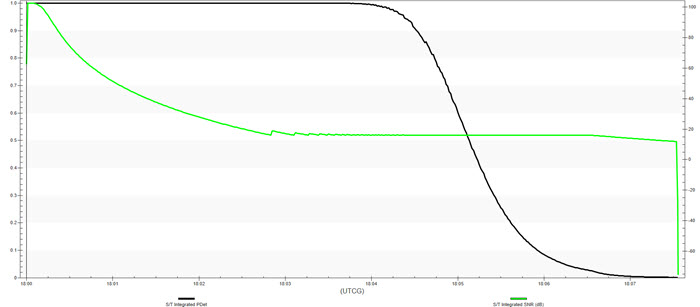
Radar Search/Track Results
You can see that the S/T Integrated PDet drops below 0.8 at approximately 4 minutes and 44 seconds after launch. The S/T Integrated SNR remains above 12 dB until HeavyLiftVehicle reaches the limit of its range approximately 7 minutes and 30 seconds after launch.
Saving your STK scenario
Before opening the ModelCenter application, save your scenario and close out of the STK application.
- Save () your scenario.
- Close the STK application.
Creating a new ModelCenter project
The Ansys ModelCenter model-based systems engineering software is designed for multidisciplinary analysis and design optimization. It allows you to automate complex workflows, integrate multiple engineering tools, and optimize designs within model-based systems engineering (MBSE) frameworks. By wrapping tools and analysis programs like the STK application and running them in an automated fashion, the ModelCenter software makes the design process more efficient, saves engineering time, and reduces the chances for error in the design process. It implements MBSE processes flexibly; its drag-and-drop graphical user interface can be used to assemble tools into a complete engineering workflow, which can contain branches, loops, logical statements, and more. Your workflow can contain tools that run on any number of different machines and operating systems. Once a repeatable engineering analysis process is created, you can repeatedly execute the process, using parallel computing resources if available. Each execution corresponds to a different set of inputs, which you can use to explore and quantify the performance of your design alternatives in a relatively short time.
- Open the ModelCenter (
 ) application.
 - Click in the Welcome to ModelCenter dialog box.
- Click when the What type of model would you like to create? dialog box opens.
- Navigate to your scenario folder (for example, C:\Users\<username>\Documents\STK_ODTK 13\ModelCenter_RadarAnalysis).
- Enter ModelCenter_RadarAnalysis in the File name field.
- Ensure the Save as type is set to the ModelCenter Model (Zip) (*.pxcz).
- Click .
A Process is a graphical, flowchart-like workflow that explicitly tells the ModelCenter application what order (and under what conditions) to run each component.
You can learn more about the ModelCenter software
Launching the STK Plugin for ModelCenter
All ModelCenter workflows are built using a simple drag-and-drop scheme for creating a graphical layout of a complex analysis. Process workflows leverage that capability by highlighting "hot spots" for adding and moving components in a workflow. Components encapsulate an analysis or control function. Each component exposes input and output variables and executes a run method to transform inputs into outputs. The
- Note that your empty Process workflow contains a single hot spot, represented by a dashed circle underneath "Drop items here to build the model," in the Analysis View.
- Select favorites (
 ) in the Server Browser at the bottom of the window.
 - Click and drag the STK component (
 ) from the Server Browser onto the hot spot.
 - Select ModelCenter_RadarAnalysis.sc when the Open STK Scenario file dialog box opens.
- Click .
This will open the STK scenario and STK Analyzer windows. Please be patient.
The ModelCenter_RadarAnalysis scenario file will open in the STK application in the background. If the STK application opens in front of ModelCenter, bring the ModelCenter application window back to the front.
Setting up your analysis with Analyzer
Use the STK Analyzer window to configure the input and output variables available for further analysis with the
Selecting the input variables
Your first study will focus on the design specifications of the radar's transmitter — specifically, the wavelength. Later in your analysis, you will analyze power, which is currently set at 120 kilowatts. For now, assume an increase in power will provide a better mean ST Integrated PDet value.
- Expand (
 ) Radar_Site () in the STK Variables tree.
 - Select PhasedArrayRadar ().
- Select the General tab in the STK Property Variables panel.
- Expand () the SystemMonostatic (
 ) property in the STK Property Variables tree.
 - Expand () the Transmitter () property.
- Expand () the Specs () property.
- Select Power (
 ).
). - Move (
 ) Power () to the Analyzer Variables list.
 - Select Wavelength ().
- Move () Wavelength () to the Analyzer Variables list.
When you select an object in the STK Variables tree, all possible input variable candidates for that object are listed under the General tab and the Active Constraints tab in the STK Property Variables panel.
Note that Power and Wavelength are listed under Inputs in the Analyzer Variables - Variables list.
Selecting the output variable
The same data providers that are available in the Report & Graph Manager in the STK application are available in the Data Provider Variables tree.
- Expand () Access () in the STK Variables tree.
- Select Place-Radar_Site-Radar-PhasedArrayRadar-to-LaunchVehicle-HeavyLiftVehicle ().
- Select the Data Providers () tab in the Data Provider Variables panel.
- Select the Show all data providers check box at the bottom of the Data Providers Variables tree.
- Expand () the Radar SearchTrack (
 ) data provider.
 - Expand () the S/T Integrated PDet () data provider element.
- Select the Mean (
 ) statistical function.
 - Move () Mean () into the Analyzer Variables list.
- Click to confirm your selections and to close the STK Analyzer window.
Note that Mean is listed under Outputs in the Analyzer Variables list.
This will also close the STK application, which had been running in the background.
Note that the Analysis View now contains an STK_ODTK13 () component, which is shown as a box in the Analysis View window.
Studying the transmitter wavelength
The parameter you will examine is the transmitter's wavelength. You need to select input and output variables from the main Analyzer window to pass to the Parametric Study tool.
Creating a benchmark
You can quickly analyze your current setup, which will create a benchmark of the output variable values.
- Expand () all the components in the Component Tree.
- Note the input variable (Wavelength) value in the Component Tree.
- Hover your cursor over Wavelength (
 ).
). - Hover your cursor over Power ().
- Click Run (
 ) on the Standard toolbar.
 - When completed, note the Mean output variable's icon has changed from invalid (
 ) to valid (
 ) and its Value has been computed.
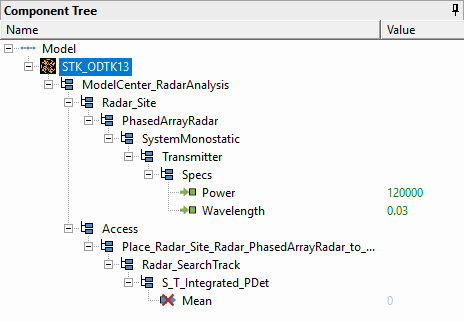
expanded component tree
The Wavelength unit is m, or meters.
The Power unit is W, or watts.
The mean ST Integrated PDet value is above 0.6 based on a wavelength of 0.03 meters and a power setting of 12,0000 watts.
Using the Parametric Study tool
The Parametric Study tool runs a workflow through a sweep of values for some input variable. You can plot the resulting data to view trends. You will run a Parametric study to determine which wavelength provides the best mean ST Integrated PDet value using the power setting of 120 kilowatts.
- Click Parametric Study (
 ) on the Standard toolbar.
 - Click and drag Wavelength () from the Component Tree to the Design Variable field when the Parametric Study tool opens.
- Set the following Design Variable values:
- Click and drag Mean () from the Component Tree to the Responses field.
- Click .
| Option | Value |
|---|---|
| starting value | 0.024 |
| ending value | 0.0375 |
| number of samples | 28 |
Setting the number of samples to 28 automatically sets the step size to 0.0005 meters.
Clicking will open the Data Explorer, which is a tool used by Trade Study tools to display data while they are being collected from your model. While data are being collected, the Data Explorer displays a progress meter, a halt button, and the data. The Table page of the Data Explorer displays trade study data in a tabular form. It is the default window that is present for all trade studies. Cells are shaded differently depending on the associated variable's state. Input variables are shown with green text, valid values are displayed with black text, invalid values are displayed with gray text, and modified values are displayed with blue text. From the table it is possible to view and edit all values in your trade study and even to add and remove whole runs.
Be patient, since you are completing 28 runs and it will take a few minutes to complete.
Creating a 2D Line Plot
Once the trade study is complete and all data have been collected, the Data Explorer toolbar becomes active. Some trade study tools will automatically launch a default plot window when the trade study runs. For other plots, you can create them from the Add View menu. For this study, you will create a 2D Line Plot. A 2D Line Plot displays an X-Y plot for variables in your model. The Data Explorer stores values for all variables in a workflow and special variables from the trade study. Any variable in the workflow can be plotted against any other variable.
- Bring the Data Explorer window to the front when the when the trade study is finished running.
- Click Add View (
 ) on the Data Explorer toolbar.
 - Select 2D Line Plot (
 ) in the drop-down menu
Setting options for the axes
Use the Axes tab to set options for the axes.
- Click Axes (
 ) in the Plot Options menu.
 - Select the Ticks tab.
- Change the Max # value to 20.
- Click anywhere on the plot to close the Plot Options menu.
- Review the 2D Line Plot.
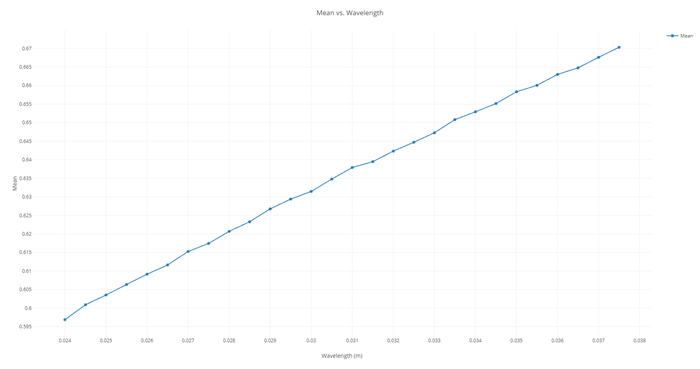
Wavelength 2D Line Plot
As the transmitter's wavelength increases and its frequency becomes lower, the mean S/T Integrated PDet increases.
Closing out your trade study
Close out your trade study for the next section.
- Bring the Data Explorer to the front.
- Close the Data Explorer.
- Click when prompted to close your trade study without saving.
- Close the Parametric Study tool.
This will also close all open plots and graphs.
Optimizing the transmitter parameters
You now know that transmitter parameters have an impact on ST Integrated PDet. To optimize these parameters, you can either guess at values or employ an optimization tool. Although you can clearly see trends from the previous studies, guessing at values will be difficult because you are dealing with multiple parameters at the same time. To solve more complex problems, the STK Analyzer Optimization capability, by means of the ModelCenter software's Optimization tool, can be a very useful guide. The Optimization tool is a collection of optimization algorithms that you can use within the ModelCenter application. A common graphical user interface (GUI) is provided to define optimization problems. An algorithm selection wizard is also provided to make it easy to choose algorithms that will work best for the problem at hand. Use the Optimization tool to minimize the power requirement for the transmitter while maintaining an average Integrated PDet of approximately 0.5 or higher.
Creating an objective
Objective functions can be specific variables or equations composed of multiple output variables. Your objective is to minimize the value for power and maximize the mean ST Integrated PDet by changing wavelength and power. Your mobile radar's power can be set from 120 to 150 kilowatts. Your wavelength range is 0.025 to 0.0375 meters.
- Click Optimization Tool (
 ) on the Standard toolbar.
 - Click and drag Power () from the Component Tree to the Objective field when the Optimization tool opens.
- Ensure the Goal for Power is set to Minimize.
- Click and drag Mean () to the Objective field.
- Open the Goal drop-down list (
 ) for Mean.
 - Select Maximize.
Setting the constraints
Constraints restrict particular variables to a region or value.
- Click and drag Mean () to the Constraint field.
- Set the Lower Bound to 0.5.
- Set the Upper Bound to 1.0.
Selecting the Design Variables
The design variables are the variables that the optimizer will modify to meet the objective.
- Click and drag both Power () and Wavelength () to the Design Variables field.
- Set the following Design Variable values:
| Design Variable | Start Value (Explicit Value) | Lower Bound | Upper Bound |
|---|---|---|---|
| Power | 120000 | 120000 | 150000 |
| Wavelength | 0.03 | 0.025 | 0.0375 |
Note that each Start Value must be equal to or greater than its respective Lower Bound value.
Selecting the algorithm
Many algorithms are available, including gradient-based optimizers, genetic algorithms, multiobjective algorithms, and other heuristic search methods In this case, since you have two objectives for your study, you need to select an algorithm that can support multiple objectives.
- Open the Algorithm drop-down list.
- Select DAKOTA Multiobjective Genetic Algorithm (MOGA).
- Click .
The DAKOTA (Design Analysis Kit for Optimization and Terascale Applications) toolkit provides a flexible and extensible interface between computational models and iterative analytical methods. The MOGA algorithm uses a non-dominated algorithm to perform a Pareto search to find a set of best designs for multiobjective problems. The algorithm supports a mixture of real and discrete variables and general constraints.
While you could choose the Darwin Algorithm to perform this trade study, using it potentially would take thousands of runs and many hours to complete. Using the DAKOTA Multiobjective Genetic Algorithm will allow you to identify feasible options in only a few hundred runs.
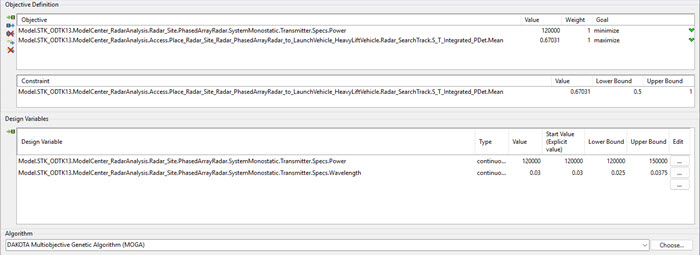
Optimization tool setup
The optimizer will display a history of steps as it progresses. By default, it will display only the objective definition.
Be patient. Your trade study may run over a period of three or more hours.
Reviewing the optimization study
The objective of your trade study is to minimize the value for power by changing wavelength and power all while maintaining an mean S/T Integrated PDet above a minimum of 0.5 as possible. It's possible that you won't meet your goal due to radar system limitations, but you can still get close.
- Return to the Optimization tool.
- Click in the Status panel to show the convergence history of the process.
- Select the Best Designs tab, which contains the optimized values, when the Optimization tool Results window opens.
- Review the results.
- Click to close the Optimization Tool Results window when you are finished.
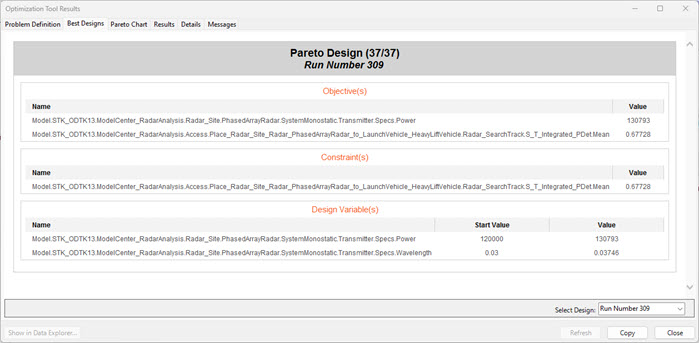
Optimization Values
These values are also displayed in the Value column for the design variables in the Optimization tool.
Reviewing the optimized values
After running an optimization study, the values in your model will be changed to the final, optimized values. View the updated values.
- Return to your ModelCenter workspace.
- Note the updated values of your input variables.
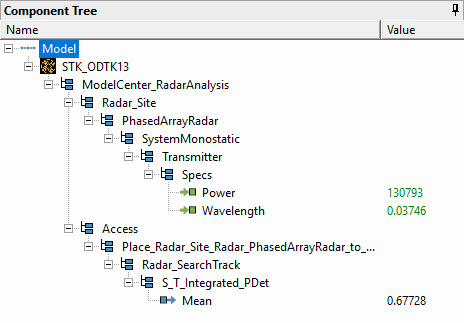
Updated values
You will need them in the next section.
Saving your work
Save your work and close out of ModelCenter application.
- Close the Data Explorer window.
- Click when prompted to close your optimization study without saving.
- Close the Optimization tool.
- Click when prompted to close the Optimization tool without saving your setup as a favorite.
- Click Save (
 ) on the File toolbar to save your ModelCenter model.
 - Close the ModelCenter application.
Reopening your STK scenario
Reopen the ModelCenter_RadarAnalysis scenario for further analysis.
- Launch the STK application ().
- Click
 Open a Scenario in the Welcome to STK dialog box.
 - Navigate to the location of your scenario (for example, C:\Users\<username>\Documents\STK_ODTK 13\ModelCenter_RadarAnalysis) when the Directory dialog box opens.
- Select ModelCenter_RadarAnalysis.sc in the Open dialog box.
- Click .
Updating the transmitter values
Now that your transmitter specs are optimized, update those properties in your STK scenario.
- Open PhasedArrayRadar's () Properties ().
- Select the Basic - Definition page when the Properties Browser opens.
- Select the Transmitter tab.
- Select the Specs sub-tab.
- Enter the optimized Wavelength value in meters (for example, 0.03746 m) in the Wavelength field.
- Enter the optimized Power value in watts (for example, 130793 W) in the Power field.
- Click to accept your changes and to close the Property Browser.
Generating an updated ST PDet and SNR graph
With your radar transmitter optimized, generate a new ST PDet and SNR graph to review the changes.
- Right-click on PhasedArrayRadar () in the Object Browser.
- Select Access... () in the shortcut menu.
- Click when the Access tool opens.
- Select the ST PDet and SNR () graph style in the My Favorites () folder in the Styles list when the Report & Graph manager opens.
- Click .
- Review the graph.
- Close the ST PDet and SNR graph when finished.
- Click to close the Report & Graph Manager.
- Click to close the Access tool.
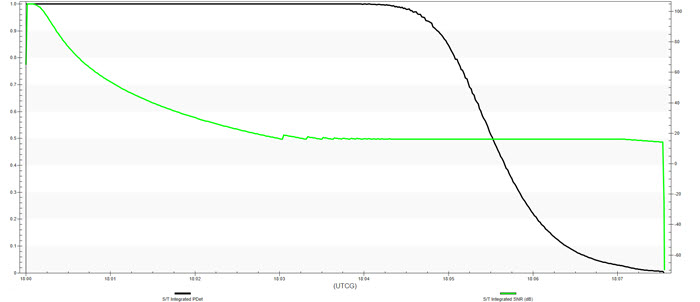
Optimized ST PDet and SNR graph
Saving your work
Clean up and close out your scenario.
- Close any open reports, properties, and the Report & Graph Manager.
- Save () your work.
Summary
You began by propagating a Launch Vehicle object. You then calculated access between a search/track radar station and the launch vehicle it was tasked with tracking using the baseline model specifications of a 0.030-meter wavelength and 120 kilowatts of power. Using the ModelCenter application, you performed a trade study to understand the impact changing the transmitter wavelength had on the mean ST Integrated PDet. You then performed an optimization study to find the best wavelength which would meet your design objective while minimizing the amount of power required. Finally, you updated your radar model specs in the STK application and reviewed the changes with an updated ST PDet and SNR graph.
On your own
You can conduct additional studies to optimize other parts of your radar system, including the pulse-repetition frequency (PRF), pulse width, and more. Run an additional study on the power to maximize both the Integrated PDet and Integrated SNR and review the differences between this study and optimizing for PDet alone.