STK Premium (Space) or STK Enterprise
You can obtain the necessary licenses for this tutorial by contacting AGI Support at support@agi.com or 1-800-924-7244.
Required product install: The Ansys ModelCenter® model-based systems engineering software and the STK Plugin for ModelCenter are required to complete this tutorial. The ModelCenter software is available through the Ansys Universal Installer and the STK Plugin for ModelCenter is included with the STK Premium installation. Contact AGI support for installation help.
ModelCenter installation prerequisites: The ModelCenter software installs the current version of Java and Python supported by Ansys, but you can also use your own versions. See the Installation instructions in the ModelCenter Installation Guide and Supported Versions documentation for more information. Contact AGI support for help with installation.
This tutorial was written using version 2026 R1 of the Ansys ModelCenter® model-based systems engineering software. Refer to the ModelCenter Supported Versions page in the ModelCenter Installation Guide and Supported Versions documentation for compatibility information.
The results of the tutorial may vary depending on the user settings and data enabled (online operations, terrain server, dynamic Earth data, etc.). It is acceptable to have different results.
Capabilities covered
This lesson covers the following capabilities of the Ansys Systems Tool Kit® (STK®) digital mission engineering software:
- STK Pro
- Astrogator
- STK Analyzer
Problem statement
Engineers and mission planners want to know what effects small launch errors can have on a mission. You have a nominal trajectory for a launch, which you planned using the STK/Astrogator® capability, but you want to better understand how small uncertainties can compound over time, should the launch not go exactly as planned.
Solution
Use the STK/Astrogator® capability and the Analyzer capability, which is part of the Ansys ModelCenter® model-based systems engineering software, to vary the burnout latitude, longitude, altitude, and velocity, then look at the resulting changes in the satellite's Keplerian elements.
What you will learn
Upon completion of this tutorial, you will understand the following:
- How to study launch errors using the ModelCenter application
- How to use the ModelCenter application's Probabilistic Analysis tool
- How to create Histogram, Scatter Matrix, and Variable Importance Summary Plots using the ModelCenter software
Using the starter scenario
To speed things up and allow you to focus on the portion of this exercise that teaches you how to use the ModelCenter software, a partially created scenario has been provided for you.
Opening the starter scenario
The starter scenario is included in your install.
- Launch the STK application (
 ).
). - Click
 Open a Scenario in the Welcome to STK dialog box.
 - Browse to <Install Dir>\Data\Resources\stktraining\VDFs.
- Select Analyzer_LaunchErrors.vdf.
- Click .
Saving the VDF as a scenario file
Save and extract the VDF data in the form of a scenario folder. When you save a VDF in the STK application, it will save in its originating format. That is, if you open a VDF, the default save format will be a VDF (.vdf). If you want to save and extract a VDF as a scenario folder, you must change the file format by using the Save As feature. This will create a permanent scenario file complete with child objects and any additional files packaged with the VDF.
- Open the File menu when the starter scenario opens.
- Select Save As....
- Select the STK User folder in the navigation pane when the Save As dialog box opens.
- Select the Analyzer_LaunchErrors folder.
- Click .
- Open the Save as type drop-down list.
- Select Scenario Files (*.sc).
- Select the Analyzer_LaunchErrors scenario file in the file browser.
- Click .
- Click when the Confirm Save As Dialog box appears to overwrite the existing scenario file in the folder and to save your scenario.
A scenario folder with the same name as the VDF was created for you when you opened the VDF in the STK application. This folder contains the temporarily unpacked files from the VDF.
When saving a VDF as a scenario folder, you should extract its contents to the scenario folder the STK application automatically creates for you in the STK User folder. See the
Save ( ) often during this lesson!
Reviewing the starter scenario
Take a moment to familiarize yourself with the starter scenario.
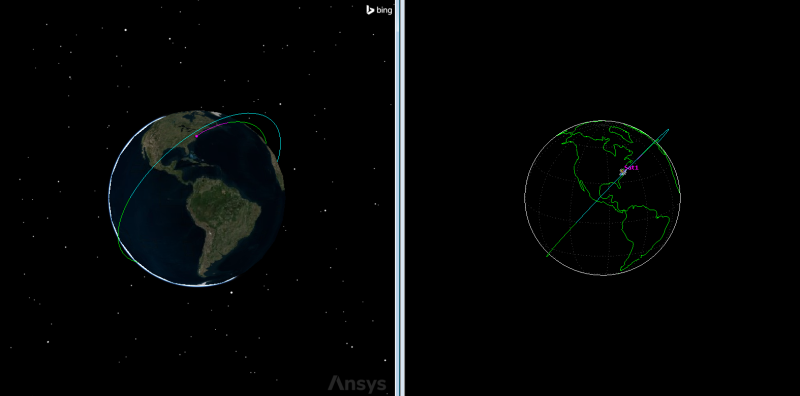
Propagated satellite in the 3D and 2D Graphics windows
Viewing the satellite's initial state
Review the Launch parameters of the Astrogator satellite by viewing its Mission Control Sequence. The
- Right-click on Sat1 (
 ) in the Object Browser.
 - Select Properties (
 ) in the shortcut menu.
 - Select the Basic - Orbit page when the Properties Browser opens.
- Select WallopsLaunch (
 ) in the Mission Control Sequence.
 - Select the Launch tab.
- Review the Launch parameters.
- Select the Burnout tab.
- Note the time of flight, latitude, longitude, and altitude, in the Burnout panel.
- Note also the Fixed Velocity in the Burnout Velocity panel.
The WallopsLaunch
Your launch is taking place from Launch Complex 0 of the Mid-Atlantic Regional Spaceport on Wallops Island, Virginia.
You will vary these burnout parameters to model the uncertainties associated with launch errors as part of a trade study.
Reviewing the initial Propagate segment
The satellite is moved to its ascending node using a Propagate segment, which models the movement of the spacecraft along a trajectory until meeting specified stopping conditions.
- Select PropToAscendingNode (
 ) in the MCS.
 - Note the Stopping Condition in the Stopping Conditions panel.
Understanding the RaiseApogee Target Sequence
The satellite's apoapsis (apogee) is raised using the RaiseApogee Target Sequence. A
- Select Mnvr1 (
 ) in the MCS.
 - Note that Mnvr1 is an Impulsive
- Note that X (Velocity) is selected (
 ) to make it an independent variable as part of the target sequence.
 - Select ToApogee () in the MCS.
- Note the Apoapsis stopping condition.
- Click at the bottom of the MCS.
- Close (
 ) the User-Selected Results dialog box without making any changes.
The Astrogator capability calculates the new state of the spacecraft by adding a Delta-V vector to the final state velocity of the previous segment. This new state is then added to the ephemeris and passed to the next segment.
Clicking this button opens the User-Selected Results dialog box, in which you can view and select calculation objects for Astrogator to report and target as dependent variables when defining a Differential Corrector Target Sequence profile. In this case, you are targeting the true altitude above Earth.
Viewing the RaiseApogee differential corrector
The RaiseApogee Target sequence uses a
- Select RaiseApogee (
 ) in the MCS.
 - Click Properties... () on the Profiles toolbar in the Profiles panel.
- Review the targeting profile's properties when the Differential Corrector dialog box opens.
- Note also that the Cartesian.X Control Parameter has the Custom Display Unit check box selected.
- Close () the Differential Corrector dialog box without making any changes.
Looking at the Variables, the independent variable (control parameter) is Cartesian.X — or X (Velocity). The equality constraint (the dependent variable; that is, the value that defines the goal of the profile) is Altitude, and the desired value (the value you want to achieve) is set to 2000 kilometers.
When selected, this allows you to use a custom unit for the element in the Target Status window and in graphs. In this case, the custom unit is m/sec.
Understanding the RaisePerigee Target Sequence
After the satellite's apogee is raised as part of the RaiseApogee Target Sequence, its periapsis is raised using another Target Sequence, RaisePerigee.
- Select Impulsive Maneuver () in the MCS.
- Note that Both X (Velocity) and Y (Normal) are selected (), making them independent variables in the Target Sequence.
- At the bottom of the MCS, click .
- Note that both Eccentricity and Inclination are selected results, making them dependent variables, when the User-Selected Results dialog box opens.
- Close () the User-Selected Results dialog box without making any changes.
Viewing the RaisePerigee differential corrector
A Differential Corrector Profile runs the Target Sequence.
- Select RaisePerigee () in the MCS.
- Click Properties... () on the Profiles toolbar in the Profiles panel.
- Close () the Differential Corrector dialog box without making any changes.
- Click to Close the Properties Browser without making any changes.
Looking at the variables, the control parameters — Cartesian.X and Cartesian.Y (or Y (Normal)) — are targeted. The equality constraints are Eccentricity and Inclination. The desired eccentricity value is 0 and the desired inclination value is 50 degrees.
Saving your STK scenario
Before opening the ModelCenter application, save your scenario and close out of the STK application.
- Save () your scenario.
- Close the STK application.
Creating a new ModelCenter project
The Ansys ModelCenter model-based systems engineering software is designed for multidisciplinary analysis and design optimization. It allows you to automate complex workflows, integrate multiple engineering tools, and optimize designs within model-based systems engineering (MBSE) frameworks. By wrapping tools and analysis programs like the STK application and running them in an automated fashion, the ModelCenter software makes the design process more efficient, saves engineering time, and reduces the chances for error in the design process. It implements MBSE processes flexibly; its drag-and-drop graphical user interface can be used to assemble tools into a complete engineering workflow, which can contain branches, loops, logical statements, and more. Your workflow can contain tools that run on any number of different machines and operating systems. Once a repeatable engineering analysis process is created, you can repeatedly execute the process, using parallel computing resources if available. Each execution corresponds to a different set of inputs, which you can use to explore and quantify the performance of your design alternatives in a relatively short time.
- Open the ModelCenter (
 ) application.
 - Click when the Welcome to ModelCenter dialog box opens.
- Click when the What type of model would you like to create? dialog box opens.
- Navigate to your scenario folder (for example, C:\Users\<username>\Documents\STK_ODTK 13\Analyzer_LaunchErrors).
- Enter Analyzer_LaunchErrors in the File name field.
- Ensure the Save as type is set to the ModelCenter Model (Zip) (*.pxcz).
- Click .
You can learn more about the ModelCenter software
Launching the STK Plugin for ModelCenter
All ModelCenter workflows are built using a simple drag-and-drop scheme for creating a graphical layout of a complex analysis. Process workflows leverage that capability by highlighting "hot spots" for adding and moving components in a workflow. Components encapsulate an analysis or control function. Each component exposes input and output variables and executes a run method to transform inputs into outputs. The
- Select favorites (
 ) in the Server Browser at the bottom of the window.
 - Click and drag the STK component (
 ) into the dashed circle underneath "Drop items here to build the model" in the workflow's Analysis View.
 - Select Analyzer_LaunchErrors.sc when the Open STK Scenario file dialog box opens.
- Click .
This will open the STK scenario and STK Analyzer windows. Please be patient.
The Analyzer_LaunchErrors scenario file will open in the STK application in the background. If the STK application opens in front of ModelCenter, bring the ModelCenter application window back to the front.
Setting up your analysis with Analyzer
Use the STK Analyzer window to configure the input and output variables available for further analysis with the
Selecting the Analyzer input variables
Your probabilistic analysis will focus on the burnout parameters of the Launch segment in your MCS. Select them as your input variables.
- Select Sat1 () in the STK Variables tree.
- Expand (
 ) the Propagator (Astrogator) (
 ) property in the STK Property Variables tree.
 - Expand () WallopsLaunch ().
- Move (
 ) the following input variables (
 ) to the Analyzer Variables list:
 - BurnoutVelocity_FixedVelocity
- Burnout_Geodetic_Latitude
- Burnout_Geodetic_Longitude
- Burnout_Geodetic_Altitude
- Note that all of the variables are listed under Inputs in the Analyzer Variables list.
When you select an object in the STK Variables tree, all possible input variable candidates for that object are listed under the General tab and the Active Constraints tab in the STK Property Variables panel.
Be sure you do not select the Launch_Geodetic Latitude, Longitude, and Altitude variables, as these define the location of the launch site.
Selecting the Analyzer output variables
You want to analyze the effects of the launch errors on the final propagated orbit. Add the orbital parameters from the final Propagate segment in the MCS as your output variables.
- Expand () Prop10Mins ().
- Expand () the FinalState () property.
- Expand () the Keplerian () property.
- Move () the following output variables (
 ) to the Analyzer Variables list:
 - SemiMajorAxis
- Eccentricity
- Inclination
- RAAN
- ArgOfPeriapsis
- TrueAnomaly
- Note that these variables are listed under Outputs in the Analyzer Variables list.
- Click to confirm your selections and to close the STK Analyzer window.
- Note that the Analysis View now contains an STK_ODTK13 () component, which is shown as a box in the Analysis View window.
This will also close the STK application, which had been running in the background.
Studying launch errors with probabilistic analysis
You want to better understand how uncertainties during the launch can affect your intended orbit. Use the Probabilistic Analysis tool to run a trade study of the burnout parameters against the final orbital parameters.
Opening the Probabilistic Analysis tool
The Probabilistic Analysis tool helps you understand how uncertainties in the design parameters affect the outputs of the ModelCenter model. The tool is typically used to compute the probability that the value of an output variable exceeds a specified limit. In addition to random sampling methods such as the Monte Carlo method, the tool provides a number of additional analytical methods that require much smaller sample sizes. You can set up and execute the probabilistic analysis through a unified graphical user interface (GUI). Using the GUI, you can easily switch between available algorithms.
- Expand (
 ) all the elements in the Component Tree.
 - Click Probabilistics (
 ) on the Standard toolbar.
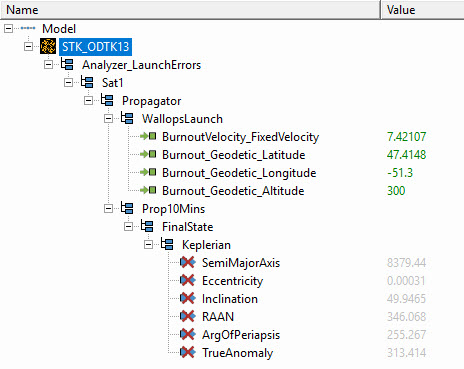
expanded component tree
Selecting the design variables and responses
It is important to properly specify the distribution characteristics of the design variables. When a new design variable is added to the tool, the Distribution Selection dialog box will appear. Using the Select dialog box, you can choose a distribution for a given design variable
- Click and drag BurnoutVelocity_FixedVelocity (
 ) to the Design Variables field.
 - Select Normal (
 ) in the Distribution list when then Select Distribution dialog box appears.
 - Leave the default Mean setting as is in the Settings panel.
- Enter 0.001% in the Std.Dev. field.
- Click to confirm your change and to close the Select Distribution dialog box.
- Using the above process, click and drag the following inputs () to the Design Variables field leaving their Mean settings at their default values and setting their standard deviations (Std. Dev.) to 0.001%.
- Burnout_Geodetic_Latitude
- Burnout_Geodetic_Longitude
- Burnout_Geodetic_Altitude
- Multi-select the following Keplerian element output variables (
 ):
): - SemiMajorAxis
- Eccentricity
- Inclination
- RAAN
- ArgOfPeriapsis
- TrueAnomaly
- Click and drag the output variables () to the Responses field.
A Normal distribution type is a "bell-shaped" distribution that describes many situations where observations are distributed symmetrically around the mean. For this distribution, 68% of all values under the curve lie within one standard deviation of the mean, and 95% lie within two standard deviations.
This sets the standard deviation for the distribution.
Be sure you include the percent symbol (%) when you enter the value.
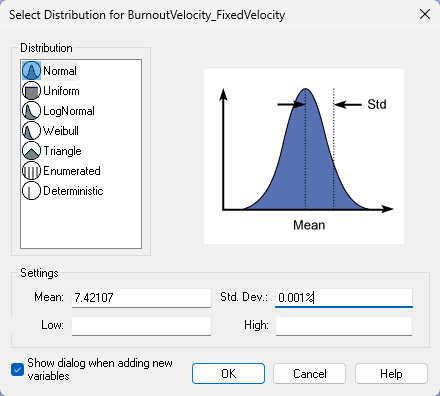
Distribution selection dialog box
Running the probabilistic analysis
With your input and output variables added, set up and run your probabilistic analysis.
- Leave Monte Carlo as the Method.
- Enter 100 in the Number of Runs to field.
- Click .
Monte Carlo is a random sampling technique. It generates random values for the design variables based on the joint distribution of the design variables. The samples are then evaluated for computing response variable values. Since this is a random sampling technique, if the ModelCenter application performs a high enough number of evaluations, this method will give the most accurate results. The number of evaluations to generate a good probability estimate increases rapidly as the probability value under consideration decreases. Since Monte Carlo is a random sampling technique, you can use it with response functions, discrete design variables, and discrete response variables that are not smooth. The histogram plot ignores failed runs while calculating mean, variance, skewness, kurtosis, and so on.
This control parameter is the maximum number of runs the tool will perform.
Clicking will open the Data Explorer, which is a tool used by Trade Study tools to display data while they are being collected from your Model. While data are being collected, the Data Explorer displays a progress meter, a halt button, and the data. The Table page of the Data Explorer displays trade study data in a tabular form. It is the default window that is present for all trade studies. Cells are shaded differently depending on the associated variable's state. Input variables are shown with green text, valid values are displayed with black text, invalid values are displayed with gray text, and modified values are displayed with blue text. From the table it is possible to view and edit all values in your trade study and even to add and remove whole runs.
Viewing the Histogram Plot
Once the trade study is complete and all data have been collected, the Data Explorer toolbar becomes active. The Data Explorer stores values for all variables in a workflow and special variables from the trade study. Some trade study tools will automatically launch a default plot window when the trade study runs. For other plots, you can create them from the Add View menu. In this case, a Histogram Plot is automatically created. A Histogram Plot visualizes the distribution of a variable in a trade study. In addition to a graphical Histogram representation of the data, the Histogram plot page also contains a Box Plot of the distribution as well as a display of the statistics of the distribution, including mean, standard deviation, quantiles, and so on. Finally, the Histogram plot page contains bounds on which values of the variable are acceptable, and it computes reliability statistics based on how many runs fall into that defined space.
- Bring the Histogram Plot to the front when all runs are completed.
- Review the Histogram Plot.
- Click Dimensions (
 ) in the Plot Options menu on the left side of the Histogram Plot.
 - Open the x drop-down list when the Dimensions menu opens.
- Select Eccentricity.
- Click anywhere on the Histogram Plot to close the Dimensions menu.
- Review the results.
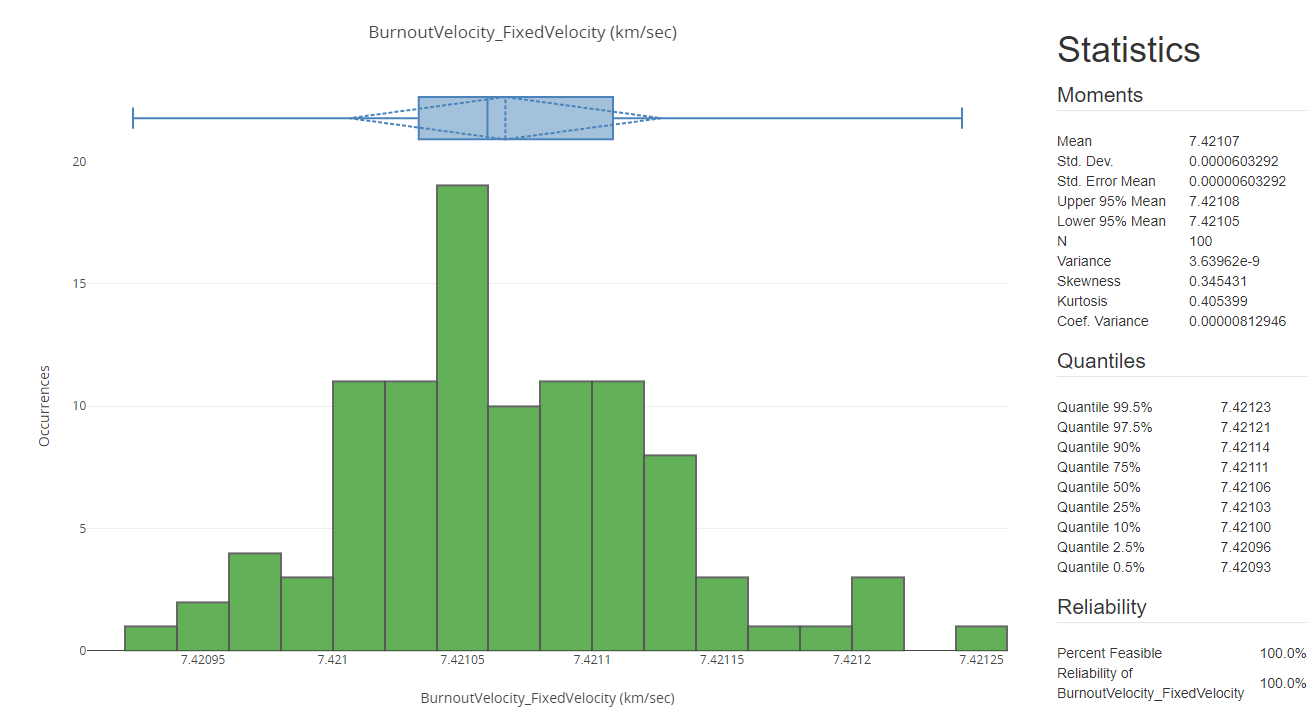
Burnout Velocity Histogram Plot
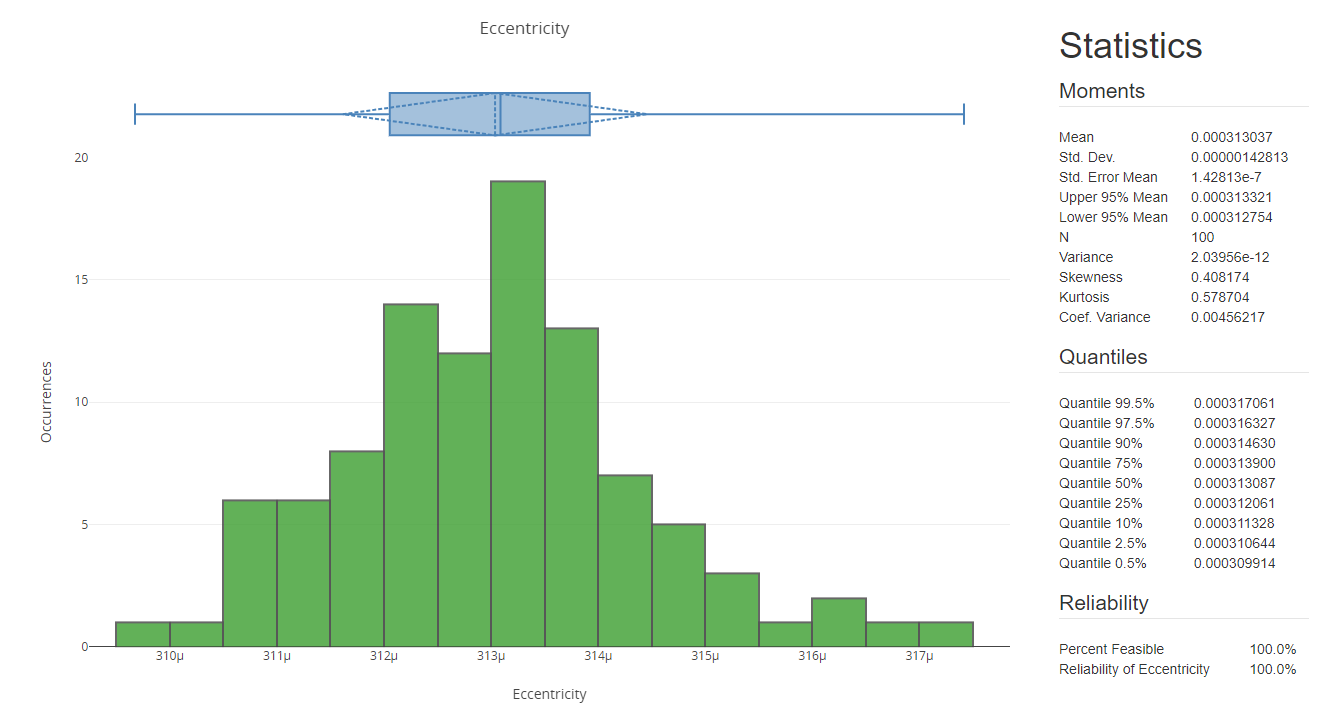
Eccentricity Histogram Plot
Generating a Scatter Matrix
A Scatter Matrix displays a grid of graphs that compare every design variable and response against every other design variable and response in the trade study. It is a grid of 2D scatter plots, where all variables under investigation are plotted against each other. Scatter matrices are an effective way to visualize trends and all possible two-way interactions of the data.
- Click Add View (
 ) on the Histogram Plot toolbar.
 - Select Scatter Matrix (
 ) in the drop-down menu.
 - Review the scatter plots.
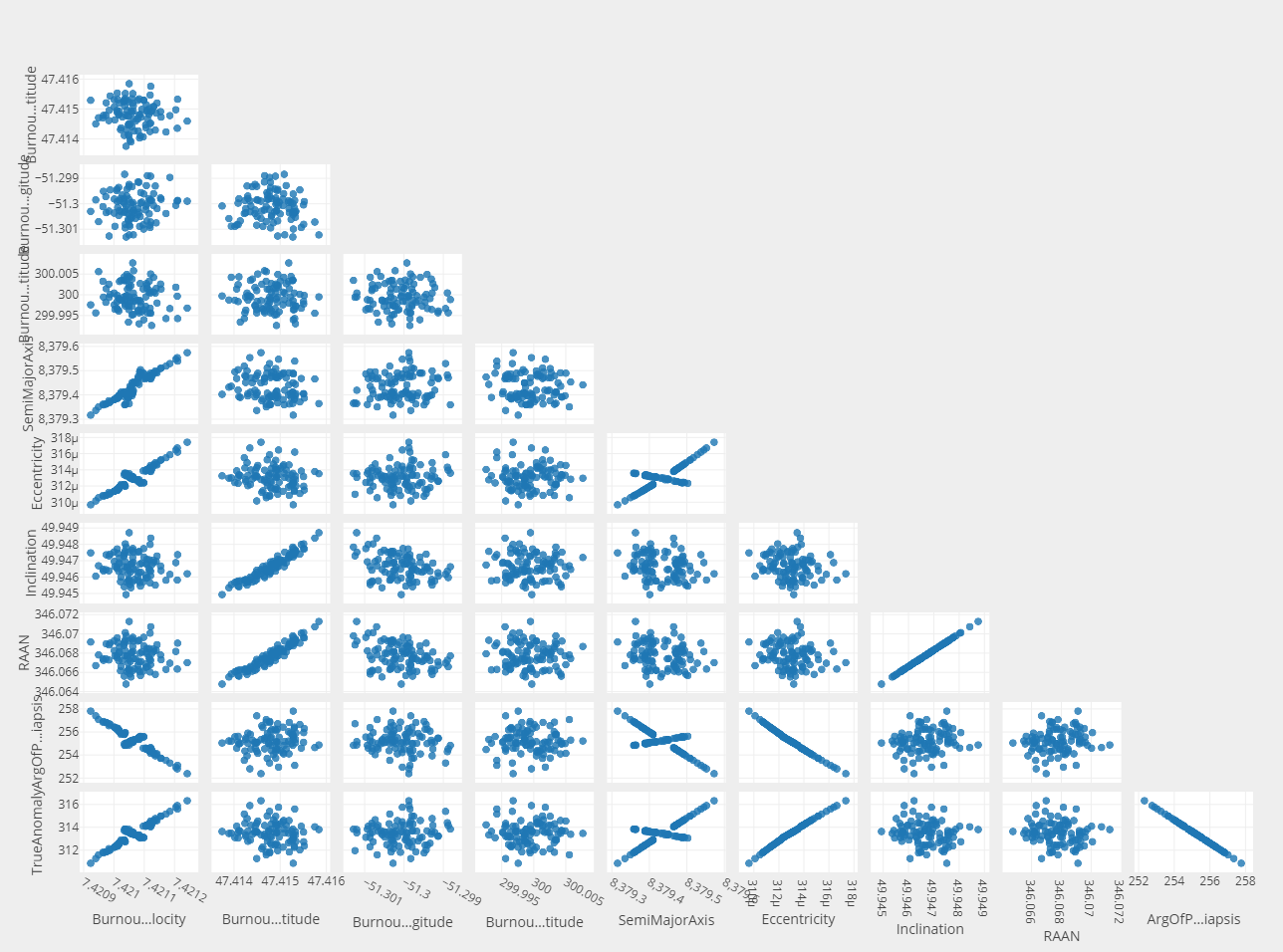
Scatter Matrix Plot
Creating a Variable Importance Summary Plot
A Variable Importance Plot is used to gain insight into key design parameters. It allows you to see which individual design parameters (main effects) and combinations of design parameters (interaction effects) have the most influence on the currently selected output variable. A Variable Importance Summary Plot shows all of the Variable Importance Plots for a whole trade study on a single plot. This helps you to quickly zero in on the most important design parameters for your problem.
- Click Add View () on the Scatter Matrix toolbar.
- Select Variable Importance Summary Plot (
 ) in the drop-down menu.
 - Review the individual Variable Importance Plots that make up the Variable Importance Summary Plot.
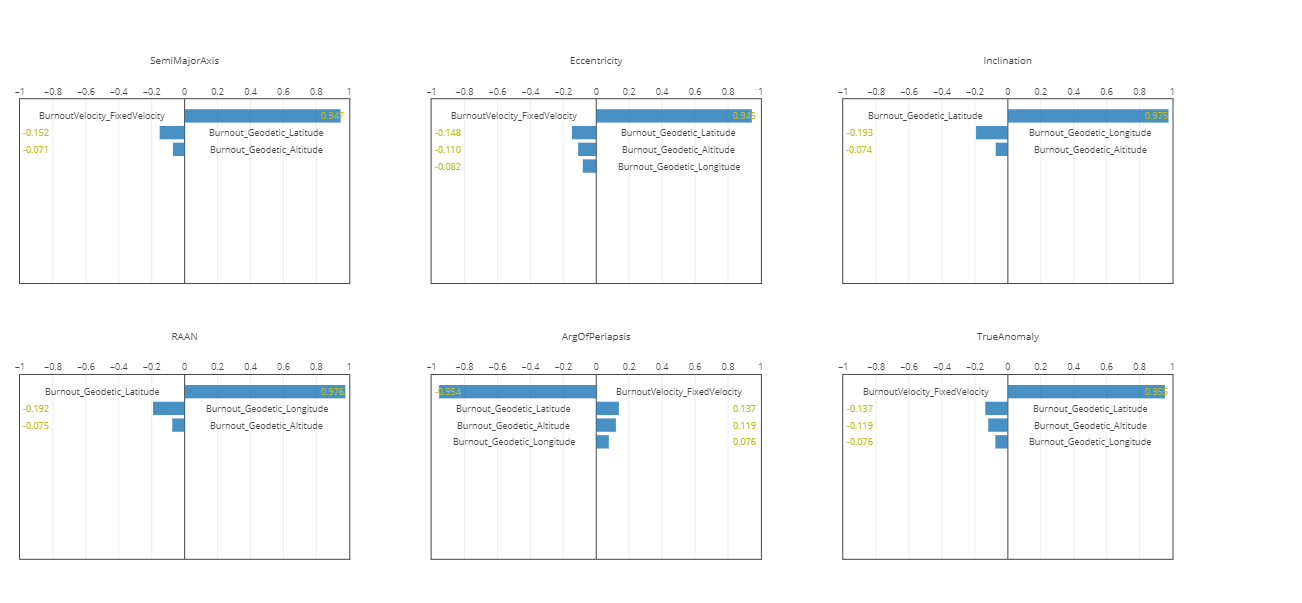
Variable Importance Summary Plot
From the Variable Importance Summary Plot, it is clear that uncertainties in the burnout velocity and burnout latitude will have the greatest effects on the satellite's orbital state. Knowing this, you can study these parameters to study in greater depth using both the ModelCenter and STK applications.
Saving your work
Save your work and close out ModelCenter application.
- Bring the Data Explorer to the front.
- Close the Data Explorer.
- Click when prompted to close your trade study without saving.
- Close the Probabilistic Analysis Tool.
- Click Save (
 ) to save your ModelCenter workflow.
 - Close the ModelCenter application.
This will close all the plots associated with the trade study.
Summary
You began by opening a prebuilt scenario with a satellite propagated from launch using the Astrogator capability. After examining the satellite's burnout parameters, you used the ModelCenter application to better understand how uncertainties in the launch can affect the mission design by conducting a probabilistic analysis. By using the ModelCenter application, you can better understand your design space and plan accordingly.
On your own
While you can use the ModelCenter application to better understand how launch errors can affect your mission and inform its design, it may not help be as helpful when correcting for errors once the satellite has been launched. For that, you can use the Ansys Orbit Determination Tool Kit (ODTK®) orbital measurement processing software and the STK software together to plan and model maneuvers needed to get your mission back on track. See the Using Astrogator and ODTK Together tutorial for more information.